
|
|
Articles
Mozilla Thunderbird and Actual Window Manager Will Cope with Any Task!
- Introduction
- Improvements
- Make Mozilla Thunderbird transparent
- Roll up Mozilla Thunderbird to access information from the Internet
- Minimize Mozilla Thunderbird to tray
- Keep Mozilla Thunderbird on top of other windows
- Other useful features
- Conclusion
- Useful Links
Introduction
Mozilla Thunderbird is a very convenient free, open source, cross-platform e-mail and news client developed by a group of talented programmers from Mozilla Foundation and help people to work with e-mail messages all over the world. But sometimes we need to solve not ordinary tasks when working on computers. So, what shall we do? The most obvious answer is to find a program which will make your Mozilla Thunderbird suitable for any task. The name of this program is Actual Window Manager.
Having more than 40 handy tools for both automatic and manual window management, Actual Window Manager is the most feature-rich and comprehensive window manager you have ever met! It lets you control virtually every window aspect, reveal hidden system features, customize settings for certain windows etc. Actual Window Manager lets you add new  Minimize Alternatively ,
  Stay Always-on-Top,
  Rollup,
  Make Transparent and other extra buttons to any window's title bar. You will be able to minimize any window to tray, automatically close annoying windows, change program priority, maximize certain windows or minimize them on startup, save and restore any window's size and position and much more...
Improvements
But let us return to the point and see how Actual Window Manager can improve our Mozilla Thunderbird.
1. Make Mozilla Thunderbird Transparent
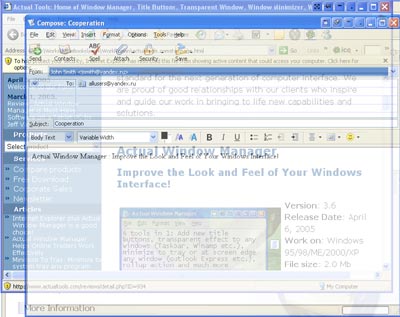
Transparent Window is a new approach to desktop space organization. Windows® is multifunctional and sometimes we work with several different applications. While writing an email letter in Mozilla Thunderbird, you need for example, to follow information in an Internet browser. Just click on the Make Transparent title button, use a hotkey (Win+T, by default) or choose the corresponding window menu command and Mozilla Thunderbird will become transparent. Varying from 0% (opaque) to 100% (invisible), individual transparency settings can be configured for different states of Mozilla Thunderbird windows and different actions. So, you will solve your task easily, without useless clicks.
2. Roll Up Mozilla Thunderbird to Access Information from Internet

If you often write letters based on some information from the Internet, Roll up function will be your mate. Press the Roll up button and your document will be reduced so only its title bar will be visible (and the Roll up button will be turned to  Unroll ). Now you can look through or check the required data in the web and then restore the text of the letter by clicking the Unroll button.
If you don't want to click any buttons at all to apply Roll up function, you can teach your computer perform it automatically! For example, if you don't want to close Mozilla Thunderbird but need to work with other applications, you can teach your computer to roll it up when it becomes inactive, i.e. when you switch to other windows. In order not to lose it from sight we recommend you to use the Stay Always-on-Top add-in for the Roll up function. If you need to have a look at Mozilla Thunderbird just to check some information you can simply hover a mouse pointer over its title bar and it will be temporarily unrolled so you can easily view its contents. Then just move mouse pointer out of Mozilla Thunderbird and it will be rolled up back automatically so you can continue your work with other programs.
3. Minimize Mozilla Thunderbird to Tray

If you often open several windows simultaneously, sometimes it is rather difficult to find a necessary one in the taskbar. For example you write a letter in Mozilla Thunderbird, work with Internet browser and copy something to Microsoft Word. Consequently, it is rather difficult to find a necessary window. We can solve this problem by minimizing some windows (e.g. Mozilla Thunderbird letter) to the system tray in order to save some space in the taskbar and to avoid closing something by mistake. And when you need this minimized window again, you can simply open it by one mouse click. So, when you decide to continue writing your letter, it will wait for you in the tray.
You can also minimize Mozilla Thunderbird into a small floating icon, which resides on the screen. You can drag this icon anywhere on the screen and choose its position and size. If you then click this icon, the normal window will be restored and the icon will be removed from the screen.
4. Keep Mozilla Thunderbird on Top of Other Windows

Actual Window Manager adds a thumbtack button to Mozilla Thunderbird title bar. Tapping the Stay Always-on-Top button pins the window on top so it will stay visible even when becomes inactive. Now you can open the email message, pin it in place, and then open the contact window. With the source of information stuck securely on top, you can drag each piece of information where it belongs without any window switching. When you are done you can unpin it with a second click on the thumbtack icon or simply close the window to go back to normal.
And that is not all! In case when you need to copy-paste the information from Notepad or any other text editor to the text of your Mozilla Thunderbird letter the  Copy to Clipboard and
  Paste from Clipboard extra buttons might be especially useful: they are really a great alternative to the standard Windows methods of copy-pasting via window menu and Ctrl+C and Ctrl+V hotkeys.
5. Other Useful Features
- Resize action lets you change the current size of Mozilla Thunderbird on-the-fly or at its startup, which might be useful in various situations, from checking some data in other windows to getting better view to the text of the message. Right-click the
 Resize button to get access to the wide range of predefined sizes or specify custom window dimensions yourself as circumstances require. Left-click the button again to restore the window to its previous size.
  Align action as the name implies, provides the automatic horizontal and vertical alignment of Mozilla Thunderbird in nine predefined alignment modes (just right-click the button). It might be useful when you need to copy-paste some information from a text editor to your letter or to position several message windows in the most convenient places on the desktop.
 Move to monitor button is useful for placing message windows to the desired monitor if you have several monitors connected to your computer. Just click it, and window will move to the next monitor. In other words, a message window displayed on Monitor 1 will move to Monitor 2. No need to drag it manually to free the desktop space!
Actual Window Manager
|
Conclusion
Actual Window Manager will make your work with Mozilla Thunderbird and other applications extremely simple and convenient. It will help you to save your time and efforts. It has more than 40 productivity tools which you can use to control every window on your screen.
It is an ideal solutoion for those who multi-task in multiple applications. Enhance the productivity of your work and make it smooth, pleasant and convenient using Actual Window Manager!
Interested? Want to see how Actual Window Manager works? Try it out! Actual Window Manager is simple to learn and use, and we think you will want to keep it once you see what it does for you!
Useful Links
See the following links that will be your guides in getting acquainted with Actual Window Manager:
- Download the fully-functional 60-days trial version of Actual Window Manager right now. It is completely free!
- Window Manager Home – the official page where you can download or order the risk-free version and read what users say about Actual Window Manager.
- Actual Window Manager Help section – the full list of features available in Actual Window Manager.
- Here you can find the information on how to create specific settings for Mozilla Thunderbird or any other window.
Check out our articles. You can find other ways for using the features presented by Actual Window Manager which are sure to make your work easier!
Dual Monitor Set Up
How to Setup Dual Monitor.

Dual Monitor Virtual Desktops in Windows 8
If you lack of the desktop space, but you have not the opportunity to use more than dual monitors, use Virtual Desktops tools provided by Actual Window Manager.
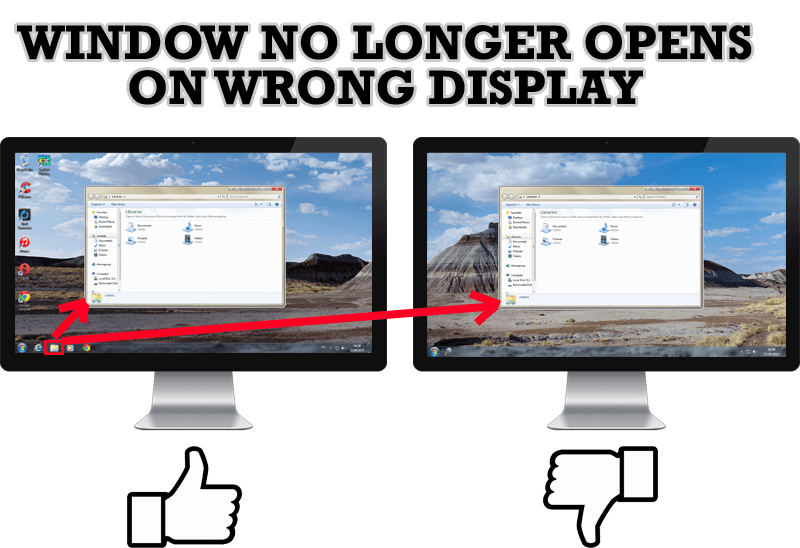
Specific Settings - Window no Longer Opens on Wrong Display
Create specific settings for a window - and it will no longer open on a wrong monitor.
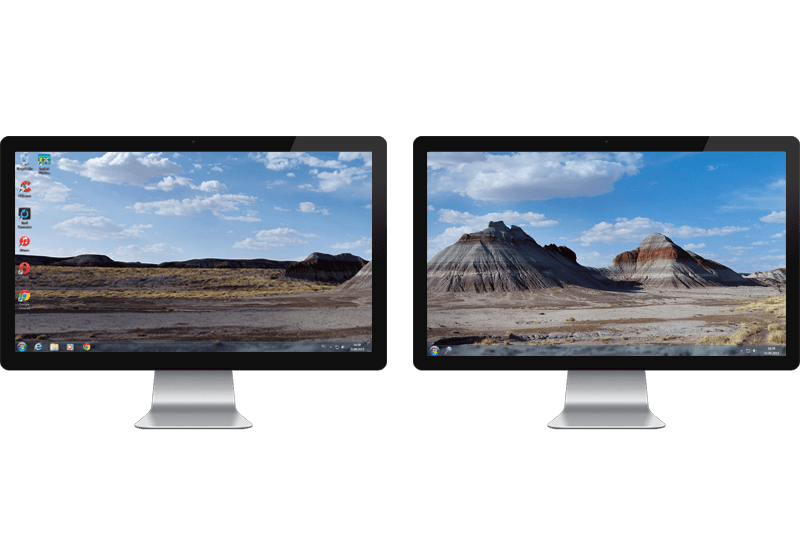
Windows 7 Dual Monitor Taskbar: How to Extend Windows 7 Taskbar to a Second Monitor
Get the fully featured Windows 7 Taskbar on a second monitor with Actual Multiple Monitors.
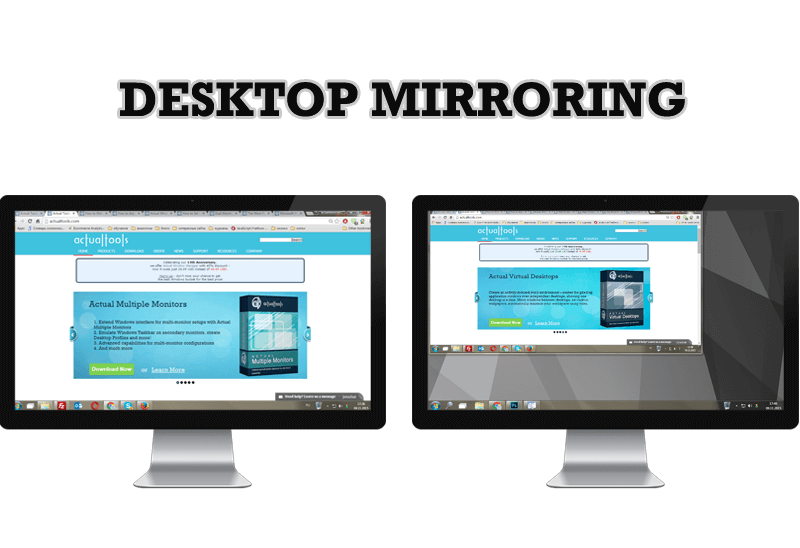
Desktop Mirroring - New Feature of Actual Multiple Monitors 3.1
Know more about new feature of the best multiple monitor software Actual Multiple Monitors 3.1 - Desktop Mirroring.
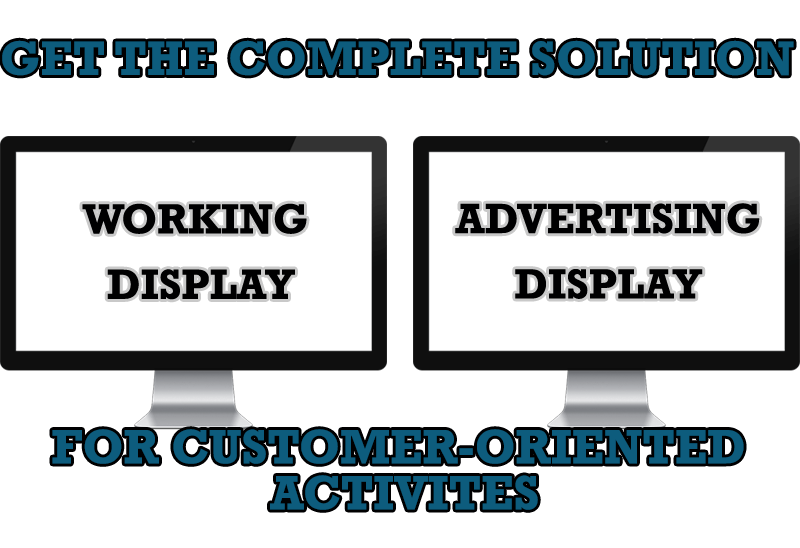
Multiple Monitors – Complete Solution for Customer-oriented Activities
Use Multiple Monitors and Actual Window Manager software to solve problems in working with clients.
Easy Way to Minimize Windows to the System Tray or to the Desktop
Actual Window Manager provides an additional title button to minimize any window to the system tray in one click.
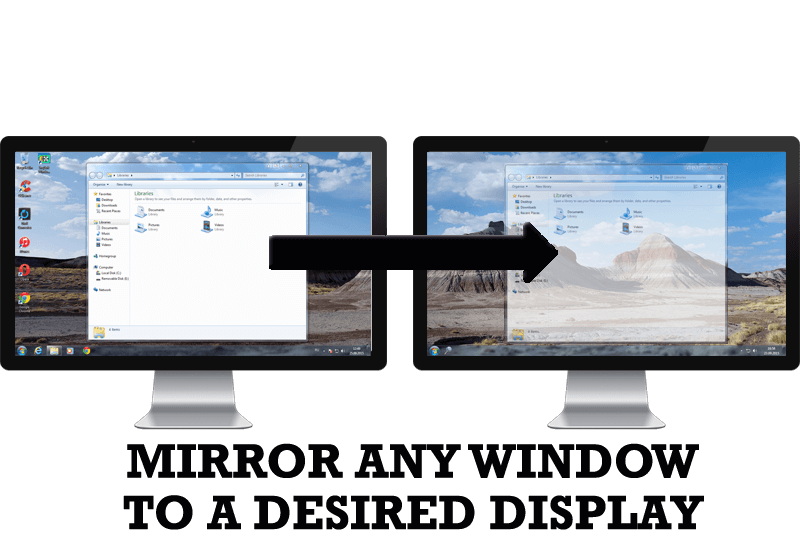
How to Mirror any Window to a Desired Display on Dual Monitors in Windows 8
Desktop Mirroring - additional feature for dual monitors in Windows 8. Mirror any window, application, monitor, or area in the special window on any display.

How can Actual Window Manager help multi-monitor users?
Get the full power of your multi-monitor configuration with Actual Tools!
-
New ways to work with Windows Media Player
Do you like to use Windows Media Player for listening to music and watching video? Great! Actual Title Buttons offers helpful new ways to make your use of Windows Media Player easier and more fun!
