
|
|
 Actual Window Menu
Take Unlimited Control over Your Windows with Extended Window Menu!
|
||||||||||||||||||
 Download now
 Order now
| Actual Window Menu | ||||||||||||||||
|---|---|---|---|---|---|---|---|---|---|---|---|---|---|---|---|---|
| ||||||||||||||||


| This software is a part of Actual Window Manager |
|
|---|
| Compare Information |
About Actual Window Menu
Computers have gone long way from primitive number crunching machines to advanced entertainment systems and serious business machines. Technology advancement made it possible to implement various graphical user interfaces with one and only aspect in mind - end user convenience.
Modern operating systems have all it takes to operate the computer fast. Common user interfaces allow for almost intuitive understanding which in turn means less time spent on learning how to operate the machine and more time spent on actual usage of computer power. However, the rich functionality of Windows has to be hidden sometimes in order leave reasonable number of choices for end user in each given situation. This way, novice users learn interface faster, but advanced users are deprived of powerful features that may further speed up the computer operation.
Actual Tools introduces Actual Window Menu, the unique standard window menu extension that provides advanced users with alternative ways of organizing and managing windows.
Actual Window Menu adds several menu items to standard window menu accessible via application icon in the title bar. Among new commands are: Roll Up \ Unroll window, Set window transparency, change program priority, minimize to task tray and always keep window on top. These new features allow advanced and newbie Windows users save their time and desktop space by neatly organizing windows.Unlike simple shell extension solutions, Actual Window Menu allows you to create rules (i.e. available menu items and corresponding settings) for each individual application which is most convenient for automating the organization process. Simply find the window you would like to configure and use straightforward interface to configure its extended menu and its settings. Next time you run the program the settings will automatically take effect!
Actual Window Menu is available under flexible licensing conditions and comes with free trial version you can download right now!
 |
 |
Features
- Minimize to Tray command:
The 'Minimize to Tray' feature lets you save taskbar space while providing access to minimized applications via the system tray icons. Make your own taskbar less cluttered and more handy! - Rollup\Unroll command:
The 'Rollup\Unroll' feature lets you minimize windows so only the title bars remain visible. - Stay on Top command:
The 'Stay on Top' feature helps you place the selected windows on top of other ones, so that it were always accessible and couldn't be hidden by other windows. Don't let these windows annoy you when you busy! - Send to Bottom command:
The 'Send to Bottom' feature sends the desired window to the bottom of others. In other words, this button hides a window under other windows, but leaves it on the desktop. - Make Transparent menu:
The 'Make Transparent' feature lets you apply transparency effect from 0% (fully transparent) to 100% (solid) rate to any program in Windows 2000/XP.
You can select a different transparency level for any window on the fly, while it is open! Clicking 'Make Transparent' displays a popup menu where you can choose one of the predefined levels of transparency. It's a very gorgeous effect, try it - and you'll like it very much.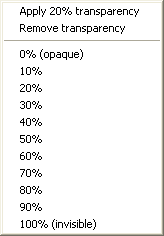
- Change Priority command:
The 'Change Priority' feature allows changing the desired window's program priority. This command has a submenu that allows you to set the one of the pre-defined levels of the window's program priority: Low, Below Normal, Normal, Above Normal, High and Real-Time.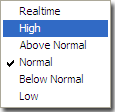
- Align Window menu:
The 'Align Window' feature lets you get any application window aligned with any of the 9 positions on the desktop - upper-left, upper-central, upper-right, etc. Clicking 'Align Window' button displays a popup menu where you can choose one of the nine types of alignement: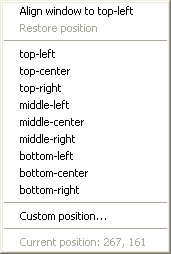
- Resize Window menu:
The 'Resize Window' feature allows you to set the size of any selected application window to have it always opened at the size you want. You can choose any Default Window Size from the list which includes exact window sizes in pixels (e.g. 640 x 480; 800 x 600; 1024 x 768) or in percents from the desktop size (e.g. 100% x 100%; 50% x 50%). Moreover you can set the width and height of any window on your own by using Custom Window Size option.
Resize Window tool is extremely useful for website designers. They can quickly see how their web project looks like in different resolutions by flicking through default window sizes or setting any unique window size on their own.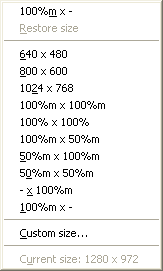
- Hotkeys support:
Now you can minimize programs to the system tray, always keep them on top, roll up windows, make them semitransparent, etc. by means only one keystroke combination. Such a possibility lets you manage the same actions much quicker on condition of using keyboard. - Individual window settings:
You can configure every program's windows to different options, leave them that way for a while, or change the options whenever you wish! Your configuration for each window will remain set after every bootup until you change it. - Multilingual support:
Actual Window Menu English, German, French, Spanish, Russian, Ukrainian, Japanese, Chinese Simplified and Chinese Traditional languages. - Possibility to improve almost each program:
Actual Window Menu is useful for working with e-mail clients (Microsoft Outlook, MS Outlook Express, Eudora, Incredimail etc.); messenger programs (MSN / Windows Messenger, Yahoo Messenger etc.); office tools (Microsoft Word, Microsoft Excel, Adobe PhotoShop, Corel Draw etc.); developer tools (MS Visual Studio, Borland Delphi etc.); and many other kinds of programs.
Add custom extended menu to your windows right now!
|
|
