
|
|
 Transparency Property Sheet
Available in: Actual Window Manager, Actual Transparent Window.
The Transparency property sheet comprises all options related to Make Transparent action
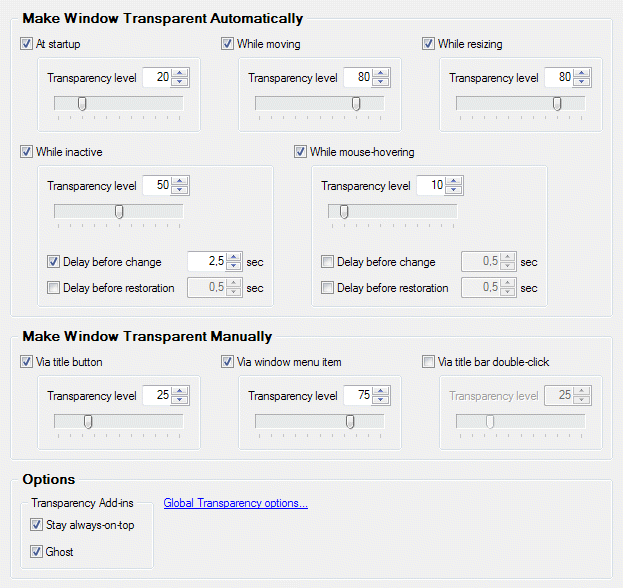
At startup check box - mark it to make the target window transparent of defined level upon its startup.
While inactive check box - mark it to change the transparency to a defined level when window becomes inactive. Also there are related controls allowing to define delays (in seconds - positive value, either integer or fractional):
Delay before change check box - mark it to wait for a specified time before making the target window transparent when it has lost the input focus
Delay before restoration check box - mark it to wait for a specified time before restoring the previous level of transparency when the target window regains the input focus
While moving check box - mark it to temporarily make the target window transparent of defined level while it is moved. When the moving is over the transparency level will be restored to its previous value.
While resizing check box - mark it to temporarily make the target window transparent of defined level while it is resized. When the resizing is over the transparency level will be restored to its previous value.
While mouse-hovering check box - mark it to temporarily make the target window transparent of a defined level while it is under the mouse pointer. When the mouse pointer goes outside the target window, the transparency level will be restored to its previous value. Also there are related controls allowing to define delays (in seconds - positive value, either integer or fractional):
Delay before change check box - mark it to wait for a specified time before making the target window transparent when it is under the mouse pointer
Delay before restoration check box - mark it to wait for a specified time before restoring the previous level of transparency when the mouse pointer goes outside the target window
Via title bar double-click check box - mark it to make the target window transparent of defined level by double-clicking its title bar.
Transparency Add-ins group - allows enabling the execution of other actions along with making transparent:
Stay Always-On-Top check box - mark it to make the target window always-on-top while it is transparent
Ghost check box - mark it to Ghost the target window while it is transparent
If transparency is changed with the temporary triggers then the "Stay Always-On-Top" add-in won't be used.
Adjusting the Transparency Level
You can easily adjust the transparency level value by using the following standard visual controls:
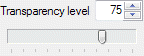
Transparency level spin edit - here you can either type a value or select it by clicking increase/decrease arrows
Transparency level slider - click and drag the slider with your mouse pointer to select the desired value
