
|
|
General Options Panel
The General Options panel allows adjusting the most essential Actual Window Manager options.
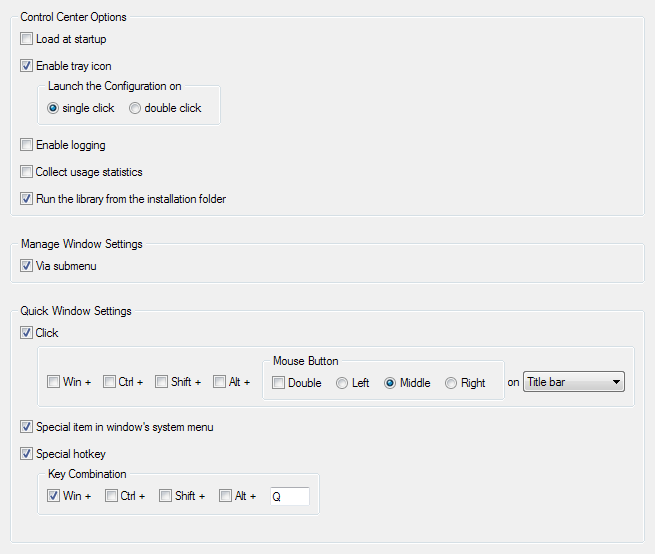
Control Center Options group provides check boxes that allow the control on Actual Window Manager Control Center appearance and behavior.
Load at startup check box - mark it to load the Control Center as soon as Windows® starts.
Enable tray icon check box - mark it to show the Actual Window Manager icon in the system tray while the Control Center is loaded. In the related Launch the Configuration on group you can select which kind of click on the tray icon - single or double - you prefer to open the Configuration Module.
Enable logging check box - mark it to turn on the Windows Monitoring Log tool. You can also do this using the same check box in Control Center's Log window.
Collect usage statistics check box - mark it to let Actual Window Manager keep record in a special log file of any window manipulation you undertake - either automatic (as you configured in the window settings) or manual (using a title button, window menu command or hotkey). This will help Actual Tools development team better understand the preferences and needs of the users and improve the products more consciously and purposefully.
Run the library from the installation folder check box - mark it to force Actual Window Manager use its runtime libraries from the folder where Actual Window Manager is installed into.
Since the version 6.0, Actual Window Manager by default copies its runtime libraries to the current user profile's %Temp% folder and runs them from there. Such approach simplifies future updates of these files when installing a new version and may prevent the unwanted reboot of your PC after the installation.
However, it may conflict with your security software settings which could prohibit launching programs from the %Temp% folder (that is a common practice for computer viruses), and these settings may be out of your control (e.g. because of the corporate policy). In such case, you can enable this option to make Actual Window Manager compatible with your security settings and force it use the runtime libraries from its installation folder as any other common program.
Manage Window Settings group gives you the opportunity to manage certain window's settings in a quick and convenient manner by calling the Configuration Module via additional submenu in window's system menu.
Quick Window Settings group lets you choose in which way you want to activate the Quick Window Settings dialog:
Click check box - mark it to activate the Quick Window Settings dialog via specified mouse click action. Clear this check box to disable this way of activation.
Special hotkey check box - mark it to enable the special hotkey which you can press to activate the Quick Window Settings dialog for an active window. Clear this check box to disable this way of activation. In the below group of controls you can customize the key combination which should be pressed to invoke the dialog.
