
|
|
 Title Buttons Property Sheet
Available in: Actual Window Manager, Actual Title Buttons.
The Title Buttons property sheet defines which extra buttons should be added to target window's title bar, and also allows adjusting some related options.
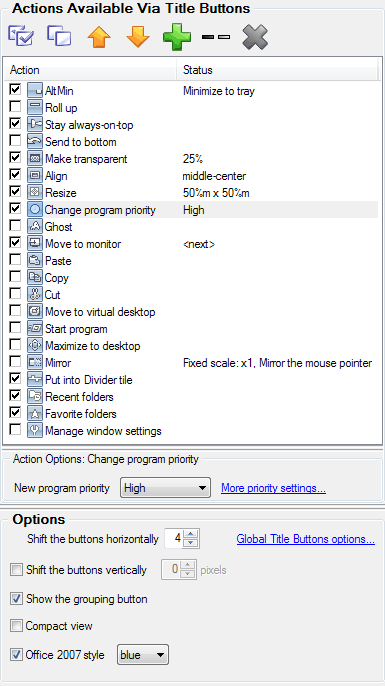
Actions Available Via Title Buttons group - contains the action list and the
Action Options group. Action list displays the set of items where each item represents a single title button and
has a check box on the left allowing to enable/disable this title button so it will be, or will be not, displayed in
target window's title bar
You can use the related toolbar to manage the action list:
 Enable All button
- click it to enable all actions at once
Enable All button
- click it to enable all actions at once
 Disable All button
- click it to disable all actions at once
Disable All button
- click it to disable all actions at once
 Move Up button
- click it to move the selected action one position up
Move Up button
- click it to move the selected action one position up
 Move Down button
- click it to move the selected action one position down
Move Down button
- click it to move the selected action one position down
 Add button
- click it to add a new custom action
Add button
- click it to add a new custom action
 Add Separator button
- click it to add a separator to tell apart the groups of buttons
Add Separator button
- click it to add a separator to tell apart the groups of buttons
 Delete button
- click it to delete the selected custom action or separator
Delete button
- click it to delete the selected custom action or separator
The following predefined actions can be selected to execute via extra title buttons (also you can add your own buttons with custom properties, including the Combo button, using the toolbar):
AltMin item - mark this item's check box to display the AltMin title button in target window's title bar. In the corresponding Minimization Mode group you can select where the target window will be minimized when you left-click this button.
Note
You can also modify these options in the Minimizing property sheet.Rollup item - mark this item's check box to display the Roll Up title button in target window's title bar.
Note
You can also modify these options in the Rollup property sheet.Stay always-on-top item - mark this item's check box to display the Stay Always-On-Top title button in target window's title bar.
Send to bottom item - mark this item's check box to display the Send to Bottom title button in target window's title bar.
Make transparent item - mark this item's check box to display the Make Transparent title button in target window's title bar. In the corresponding group of controls you can set the required level of transparency that will be applied to the target window when you left-click this button.
Note
You can also modify these options in the Transparency property sheet.Align item - mark this item's check box to display the Align title button in target window's title bar. In the corresponding group of controls you can choose the required alignment that will be applied to the target window when you left-click this button.
Note
You can also modify these options in the Position property sheet.Resize item - mark this item's check box to display the Resize title button in target window's title bar. In the corresponding New Window Size group you can define the required window size that will be applied to the target window when you left-click this button.
Note
You can also modify these options in the Size property sheet.Change program priority item - mark this item's check box to display the Change Program Priority title button in target window's title bar. In the corresponding New program priority combo box you can choose the required priority level that will be set for target window's application when you left-click this button.
Note
You can also modify these options in the Priority property sheet.Ghost item - mark this item's check box to display the Ghost title button in target window's title bar.
Note
You can also modify these options in the Ghost property sheet.Move to monitor item - mark this item's check box to display the Move to Monitor title button in target window's title bar.
Paste item - mark this item's check box to display the Paste from Clipboard title button in target window's title bar.
Copy item - mark this item's check box to display the Copy to Clipboard title button in target window's title bar.
Cut item - mark this item's check box to display the Cut to Clipboard title button in target window's title bar.
Move to virtual desktop item - mark this item's check box to display the Move to Virtual Desktop title button in target window's title bar.
Start program item - mark this item's check box to display the Start Program title button in target window's title bar. In the related group of controls you can adjust the shortcut properties.
Maximize to desktop item - mark this item's check box to display the Maximize to Desktop title button in target window's title bar.
Mirror item - mark this item's check box to display the Mirror title button in target window's title bar. In the related group of controls you can adjust the mirror settings.
Put into Divider tile item - mark this item's check box to display the Put into Divider tile title button in target window's title bar.
Recent folders item - mark this item's check box to display the Recent folders title button in target window's title bar (this button will appear in the following windows only).
Favorite folders item - mark this item's check box to display the Favorite folders title button in target window's title bar (this button will appear in the following windows only).
Switch audio playback to device item - mark this item's check box to display the Switch audio playback to device title button in target window's title bar (this button will appear in the following windows only).
Manage window settings item - mark this item's check box to display the Manage window settings title button in target window's title bar.
Options group - allows adjusting the Title Buttons trigger options. Currently the following options are available:
- Note
Use negative shift values with care, because an incorrect value may result in overlapping the standard title buttons, so you won't be able to use them! In general, use the Shift the buttons horizontally option only if you encounter a problem with the automatic placement, otherwise it's better to leave this option unchanged. Show the grouping button check box - mark it to display the Unused Buttons title button in target window's title bar.
Compact view check box - mark it to hide all the extra buttons and display the small special button instead of them. Clicking this button will show/hide the extra buttons as a popup toolbar. This option can be useful if there is little place or some other extra controls in the target window's title bar so that the extra buttons do not fit it or cover those controls.
Office 2007 style check box - mark it to use the special skin for target window's title buttons instead of the general one. This skin is visually compatible with the new style of title bar look introduced in Microsoft Office 2007 program suite. For now, there is no reliable method to automatically detect that certain window has the Office 2007 style so that you should use this option to force manually the native Office 2007 look of title buttons in particular window. In the related combo box you can select one of pre-defined styles: blue, silver or black.
