
|
|
Virtual Desktops Panel
Available in: Actual Window Manager, Actual Virtual Desktops.
The Virtual Desktops panel lets you control and configure the Virtual Desktops facility.
Enable Virtual Desktops check box - mark it to activate the Virtual Desktops facility.
Virtual Desktops Options
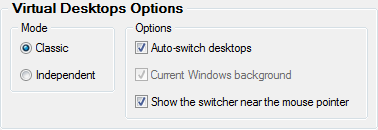
Virtual Desktops Options group allows adjusting common options of the Virtual Desktops facility:
Mode group - allows selecting the preferred mode for the Virtual Desktops facility in a multi-monitor environment:
Classic - select this option if you want to treat your entire composite desktop as a seamless workspace and make each virtual desktop span all available monitors.
In this mode, you will be able to customize the global Virtual Desktops Switcher options and manage the global list of desktops.
Independent - select this option if you want to treat each monitor as a separate workspace with its own list of virtual desktops, so that you can switch them on certain monitor independently from other monitors.
In this mode, you will be able to customize the Virtual Desktops Switcher options and manage the list of desktops on a per-monitor basis.
Options group - allows you adjust some special parameters:
Auto-switch desktops check box - lets you control the behavior of virtual desktops when a window activates on the desktop which is inactive. Mark this check box to let Actual Window Manager activate that desktop and show you the window which requires your attention; clear this check box to ignore such windows and prevent auto-switching (current virtual desktop will remain active);
Current Windows background check box - mark it if you want to leave current Windows background settings intact when activating virtual desktops in the Independent mode;
Show the switcher near the mouse pointer check box - mark it if you want the Switcher window appear right at the mouse pointer when you toggle it via hotkey. If you want the Switcher window retain its position (i.e. appear at the position where you closed it last time) then clear this check box.
Monitor Selector (Independent mode only)

Monitor Selector control - displays the current layout of displays and allows selecting the monitor which you want to manage virtual desktops for;
Display combo box - shows the name of currently selected display device and allows selecting another display from the list;
Virtual Desktops Switcher
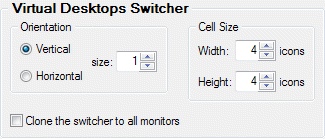
Virtual Desktops Switcher group allows adjusting the appearance of the Virtual Desktops Switcher window. Here you can specify its orientation (vertical or horizontal) and the number of rows/columns (depending on the orientation) which the desktop cells will be arranged within. Also you can adjust the desktop cell properties, such as width and height (in icons) and enable cloning of the switcher to each monitor in a multi-monitor environment (in Classic mode only).
Virtual Desktops
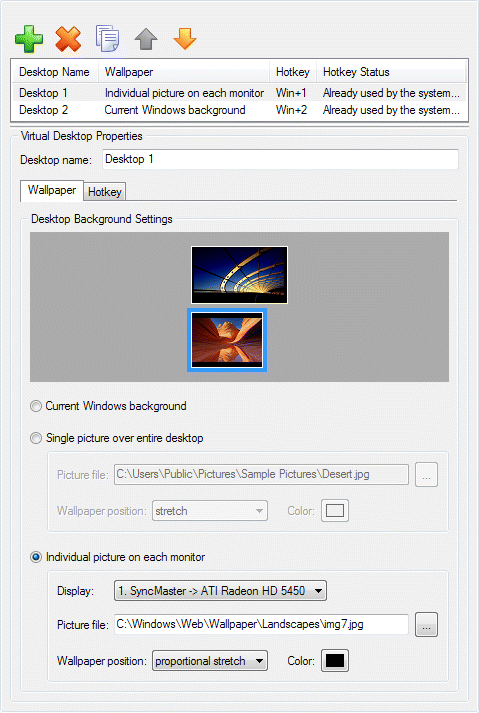
Virtual Desktops toolbar - is related to the Virtual desktops list box and contains the buttons for the following virtual desktop item's related commands:
 Add Item button
- click it to add a new virtual desktop item.
Add Item button
- click it to add a new virtual desktop item.
 Delete Item button
- click it to delete the virtual desktop item selected in the Virtual Desktops list box.
Delete Item button
- click it to delete the virtual desktop item selected in the Virtual Desktops list box.
 Copy Item button
- click it to copy the virtual desktop item selected in the Virtual Desktops list box to a new item.
Copy Item button
- click it to copy the virtual desktop item selected in the Virtual Desktops list box to a new item.
 Move Item Up button
- click it to move the virtual desktop item selected in the Virtual Desktops list box one step up.
Move Item Up button
- click it to move the virtual desktop item selected in the Virtual Desktops list box one step up.
 Move Item Down button
- click it to move the virtual desktop item selected in the Virtual Desktops list box one step down.
Move Item Down button
- click it to move the virtual desktop item selected in the Virtual Desktops list box one step down.
Virtual Desktops list box - shows the list of currently available virtual desktop items and contains the following columns:
Desktop Name column: displays the name of a virtual desktop.
Wallpaper column: displays the desktop wallpaper mode defined in the Desktop Background Settings group.
Hotkey column: displays the defined key combination, if enabled.
Hotkey Status column: if everything is OK the status is clear, otherwise it warns you in case you already assigned this combination to another action ("duplicate hotkey") or the assigned combination is already taken by other applications (including Windows® itself).
Virtual Desktop Properties group allows adjusting the following properties of the virtual desktop item currently selected in the Virtual Desktops list box:
Desktop Name edit box - click it to compose/change the name of the selected desktop;
Wallpaper tab - works identically to the Background panel;
Hotkey tab - contains the following visual controls:
Enable hotkey check box - mark it to assign a custom key combination to virtual desktop for its quick activation;
Key Combination group - contains the visual controls that allow modifying the assigned key combination (these controls work exactly the same as here).
