
|
|
Taskbar Panel
Available in: Actual Window Manager, Actual Multiple Monitors.
The Taskbar panel allows activating and configuring the Multi-monitor Taskbar and also adjust General options, which affect both native system taskbar and emulated taskbars.
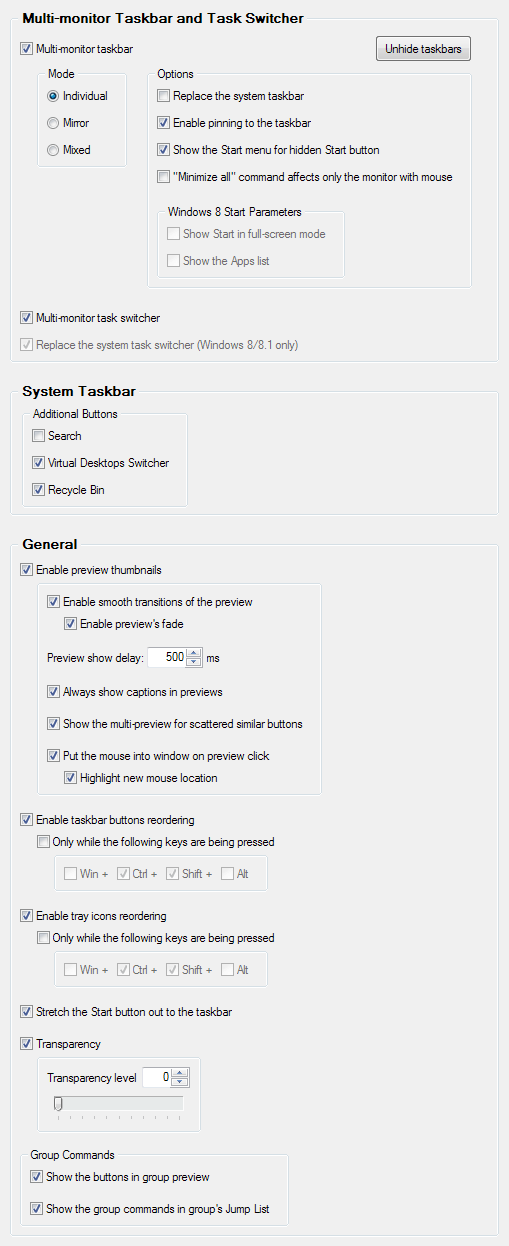
Multi-monitor Taskbar and Task Switcher
Multi-monitor taskbar check box - mark it to emulate Windows® Taskbar on each secondary monitor.
Unhide taskbars button - click it to make all hidden taskbars visible again at once.
You can do this on a per-monitor basis using either tray icon's context menu or Desktop's context menu.
Mode group - specify here, which windows will be displayed in the taskbar on each monitor:
Individual radio button - select this option to make each taskbar (including the primary one) display only windows residing on its host monitor;
Mirror radio button - select this option to make each taskbar (including the primary one) display all open windows, no matter which monitor they actually reside on;
Mixed radio button - select this option to make the primary taskbar display all open windows and each secondary taskbar will display only windows residing on its host monitor.
Options group - here you can customize the additional options of multi-monitor taskbar:
Replace the system taskbar check box - mark it to replace the system taskbar on a primary monitor with its Actual Tools implementation to benefit from advanced features provided by Actual Window Manager (like Pin in Windows XP/Vista or switching the group of windows between monitors);
Show the Start menu for hidden Start button check box - mark it to make the Start menu, activated via <Win> key or <Ctrl+Esc> key combination, appear on a monitor with the mouse pointer, even if the Start button is hidden on that monitor's taskbar.
Leaving this check box clear will display the Start menu only on a monitor with the visible Start button (if there are several such monitors, the Start menu will appear on the nearest to the mouse pointer);"Minimize all" command affects only the monitor with mouse check box - mark it to minimize all windows only on the monitor when the Minimize all command is invoked (either via taskbar's context menu or via <Win+M> keyboard shortcut). Clear it to minimize all windows on all monitors by invoking the Minimize all command (default behavior).
Windows 8 Start Parameters group - here you can adjust the appearance of Windows 8 Start screen when it's invoked from the Multi-monitor Taskbar:
Show Start in full-screen mode check box - mark it to make the Start screen cover the entire visible area of the current monitor
Show the Apps list check box - mark it to force the Start screen show the full list of installed programs instead of the default Modern UI tiles view
Multi-monitor task switcher check box - mark it to duplicate Windows® Task Switcher on each secondary monitor (Task Switcher is the special system window displayed every time you press Alt+Tab to switch between running applications).
Replace the system task switcher (Windows 8/8.1 only) check box - mark it to show the Actual Tools version of the Task Switcher instead of the system one. Actual Task Switcher is better compatible with the Multi-monitor Taskbar and is recommended to use along with the Replace the primary taskbar option enabled.
System Taskbar
Search check box - mark it to add the button that opens the system Search window;
Virtual Desktops Switcher check box - mark it to add the button that toggles the Windows 10-style virtual desktops switcher window (also known as Task View);
Recycle Bin check box - mark it to add the button that works like the system Recycle Bin object (i.e. you can drop files onto it, left click it to open the Recycle Bin folder window and right click it to invoke the Recycle Bin context menu).
General
Enable preview thumbnails check box - mark it to show the preview thumbnails when you place the mouse pointer over a button in the taskbar. In the related group of controls you adjust additional options:
Enable smooth transitions of the preview check box - mark it to force the preview window slide smoothly when you drag the mouse pointer from one taskbar button to another. Mark the related Enable preview's fade check box to force the preview window appear/disappear gradually, not instantly;
Note
These animation effects are resource-intensive so we recommend to turn them off when the graphics resources are limited (for example, during the Remote Desktop session).Preview show delay spin edit - specify here the amount of milliseconds which Actual Window Manager should wait for before displaying the preview window;
Always show captions in previews check box - mark it to enforce the displaying of window captions in their corresponding preview thumbnails, despite the system settings;
Show the multi-preview for scattered similar buttons check box - mark it to show the multiple preview thumbnails (one per window) for buttons of the same application even if they are not grouped yet and appear disctinct in the taskbar.
Put the mouse into window on preview click check box - mark it to enable the Mouse Portal feature: when you left-click the window preview, the mouse pointer will jump to the window to the point that corresponds with the clicked point in the preview (so that you won't have to drag the mouse to the window of interest and will be able to work with it immediately by placing the mouse pointer right there where you need it).
Highlight new mouse location check box - mark it to show the Mouse Sonar animation at the point, which the mouse pointer will jump to (this feature is called to compensate the instant change of the mouse pointer position).
Enable tray icons reordering check box - mark it to be able to drag icons in notification areas (both primary and secondary) with the mouse. Mark the related Only when the following keys are being pressed check box to define a combination of modifier keys needed to be pressed for drag's activation (this may prevent the unwanted buttons' reorderings).
Transparency check box - mark it to make all taskbars transparent of the defined level. In the related group of controls you can specify the desired level of transparency - it varies from 0% (opaque) to 100% (fully transparent, or invisible).
Group Commands group - allows you enabling/disable the taskbar group commands:
Show the buttons in group preview check box - mark it to show the command buttons in the group preview's window title.
Show the group commands in group's Jump List check box - mark it to append the group's Jump List with the group commands.
