
|
|
Articles
How to Play Diablo 3 on Multiple Monitors: Tips and Tricks
- Introduction
- How to Avoid the Unwanted Minimization of Diablo 3 in Full-Screen Mode
- How to Lock the Mouse Pointer in the Diablo 3 Window While Playing in Windowed Mode
- Conclusion
1. Introduction
 It’s finally here: the cult game Diablo sequel – Diablo 3 - has been released on May 15, 2012. The third part of this fantastic game has already begun to pull us out from real life. The game is very dynamic and entertaining. And all those lucky owners of multi-monitors gaming rigs want use their hardware at full power. However, although Blizzard Entertainment does not provide the native opportunity to play Diablo 3 on multiple displays, there are some tricks, which allow getting a benefit from two or more monitors.
2. How to Avoid the Unwanted Minimization of Diablo 3 in Full-Screen Mode
Diablo 3 does not support multiple monitor natively. However, you still have the possibility to play Diablo 3 on multiple monitors.
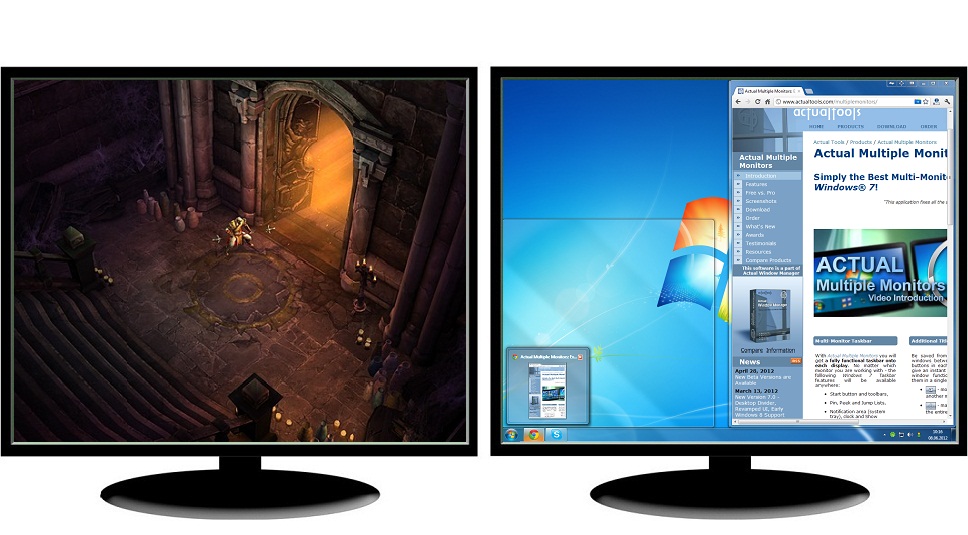
So, run the game and watch the breathtaking intro video from Blizzard Entertainment. The game runs in full-screen mode by default. The full-screen mode is good when you play on a big monitor/TV because it hides the window’s borders and the taskbar and therefore allows getting more impressions. However, when you try to activate any window on another monitor, Diablo 3 minimizes. To avoid this unwanted minimization, you can use the Ignore Deactivation feature. When the game is active, press the Ctrl-Alt-Shift-I hotkey combination. Now you can switch to any other window, and Diablo 3 will remain active and operative. Unfortunately, the game locks the mouse pointer within its host monitor forcibly but you can still use the keyboard for managing the second monitor.
3. How to Lock the Mouse Pointer in the Diablo 3 Window While Playing in Windowed Mode
If you prefer to play in the windowed mode, just set it in the game options. There are two windowed modes – common and full-screen.
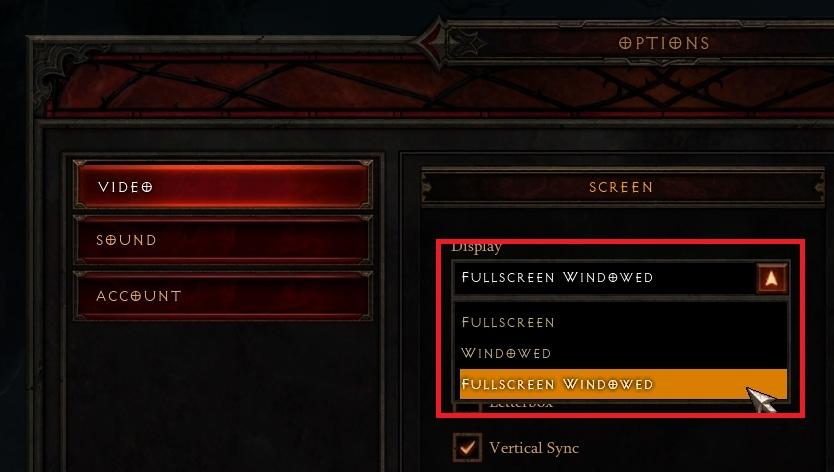
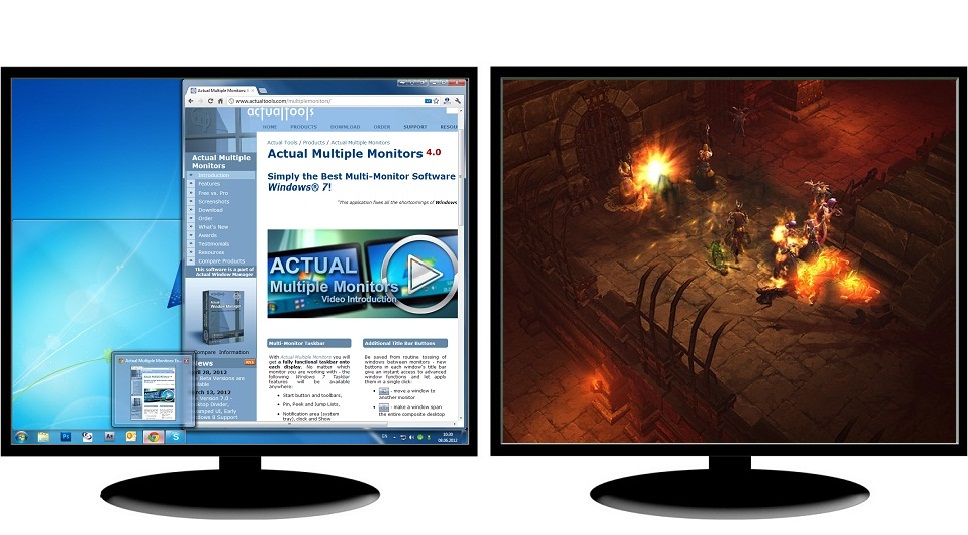
The full-screen windowed mode is the analogue of the Ignore Deactivation feature in some sense: you can play full-screen but the mouse pointer is not locked within the game’s borders. It means that you can use each secondary monitor for any purposes, such as chatting or surfing the web.
The common windowed mode allows managing the game a lot better. You can move the game window between monitors freely with the additional title button  or hotkey (Win-/ by default), or simply drag it with the mouse pointer. Also, the game window may be spanned for desired size. But please note that if the window dimensions exceed the 16:9 aspect ratio, the image will stop accommodating to the resolution and begin simply stretching. It looks terrible, so choose the suitable resolution for your configuration (in our opinion, the optimal solution is using three identical wide-screen monitors placed side by side in portrait mode).
The main advantage (and disadvantage at the same time) of the windowed mode is the impossibility to lock the mouse pointer inside the game window. It allows using the Internet, chat and any other software on each monitor. However, the mouse pointer may exit out of the game at the moment of the important actions, which may end with negative results – death of your character, loss of loot, etc. To solve this problem, you may use the Lock Mouse hotkey combination (Ctrl-Alt-Shift-L by default). This feature allows to lock the mouse pointer inside the game window. To sel ect another window, use Alt-Tab (the mouse pointer will be unlocked automatically in this case). When you return to the game window, the mouse pointer will be locked back. Also, you can deactivate this feature by pressing the same hotkey combination once more.
4. Conclusion
We hope these little tips will help you get the maximum fun and pleasure fr om playing this gorgeous game.
Back to top
Diablo® and Blizzard Entertainment® are trademarks or registered trademarks of Blizzard Entertainment, Inc. in the U.S. and/or other countries. These terms and all related materials, logos, and images are copyright © Blizzard Entertainment.






Optimize Adobe Acrobat Reader by means of new functional buttons
Such innovative functions as Make Transparent, Stay Always-on-Top, Minimize to Tray etc. will make your work with Adobe Acrobat Reader much easier and more productive.

The Most Popular Resources to Download Dual Monitor Wallpapers
Use this article to find cool dual screen wallpapers and personalize your dual monitor desktop.
Easy Way to Minimize Windows to the System Tray or to the Desktop
Actual Window Manager provides an additional title button to minimize any window to the system tray in one click.
Maximize windows when they start
Automatically maximize Internet Explorer, Outlook Express or any other window upon opening!
-
How to keep size and position of windows
If you often use such folders as My Computer, My Documents, My Network Places etc. and want to open them where you indicate - our Actual Window Manager program is made for you!

Recent Folders & Favorite Folders - New Title Buttons for Convenient Work
In the new version of Actual Window Manager you're got the opportunity of using two new title buttons - Recent Folders and Favorite Folders. These buttons will make your work more convenient.
-
Actual Window Manager will make your Mozilla Firefox better!
As you know, Mozilla Firefox is a very convenient Web-browser. Though, like any other creation of the humanity it is not perfect. The most obvious answer is to find a program which will make your browser convenient and your work comfortable and simple.
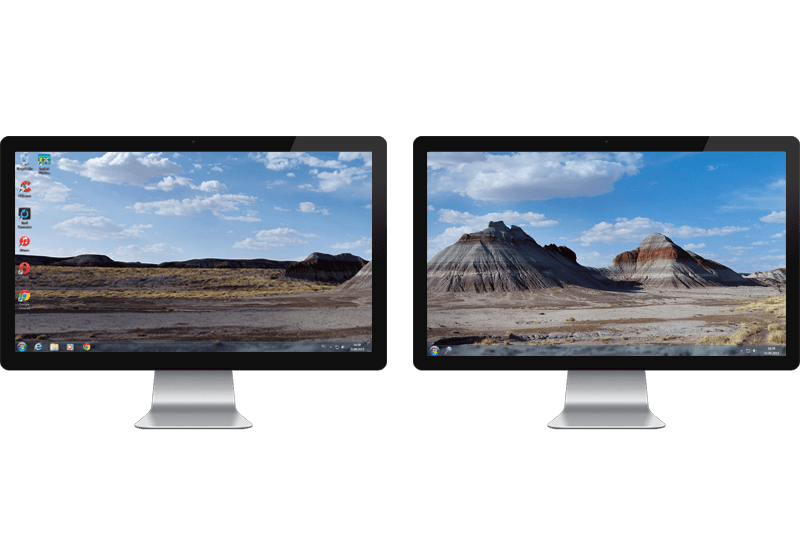
Dual Monitor Desktop Background Management with Actual Multiple Monitors in Windows 8
How to set the slideshow from Internet sources as the dual monitor desktop background in Windows 8? Read the following article.
-
Actual Window Manager is a must-have tool for users of Remote Desktop/Terminal services
Now unwanted effects can be completely solved or, at least, significantly diminished by Actual Window Manager.

Mozilla Firefox and Dual Monitors: No More Problems
Have problems with Firefox on dual monitors? Actual Multiple Monitors will help to solve it.
